Pico Projector with HDMI

hdmi-laser-pico-projector

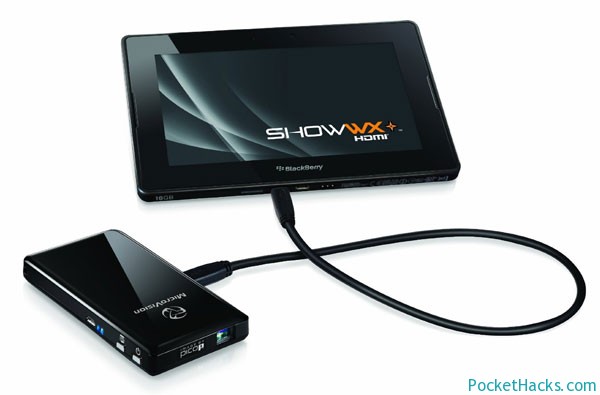
The new MicroVision pico projector has a brightness of 15 lumens, HDMI port and connector for connection to iPhone, iPod touch and iPad.

MicroVision present a new model pico projector designed for people who want to make presentations directly from it’s mobile phone.

Model ShowWX + HDMI, as its name suggests, is characterized in that it has HDMI digital interface. It can also connect a tiny Pico projector to any device that has such a port – notebook, smartphone or other media player.
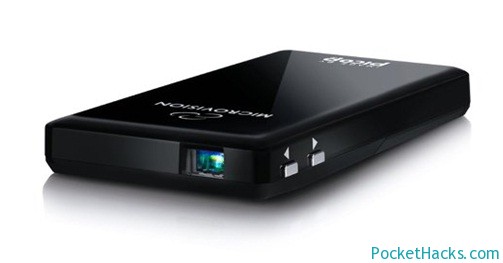
Microvision ShowWX+

Note that Pico Pocket Projector is not able to reproduce images in Full HD resolution as its maximum resolution is just 848×480 px , ie. device that you connect via HDMI cable, you need to keep scaling mode 480p.

If you have a phone, tablet, or Apple player, you can easily connect it to the Pico projector as MicroVision ShowWX + HDMI comes with a separate connector for iPhone, iPod touch and iPad.
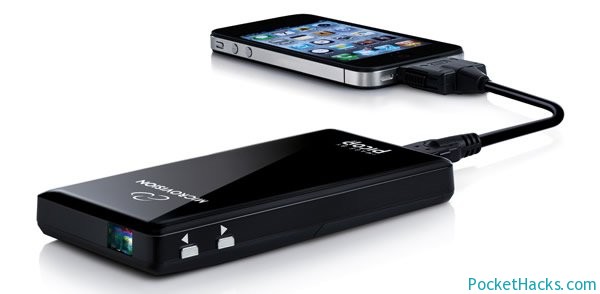
Pico-Projector-MicroVision2

To link to older laptops that do not have the HDMI port has the option of adding a standard analog VGA port (but it adapter is sold separately).

(more…)

0 Comments
Read more about the article Toshiba FlashAir – WiFi SD Card
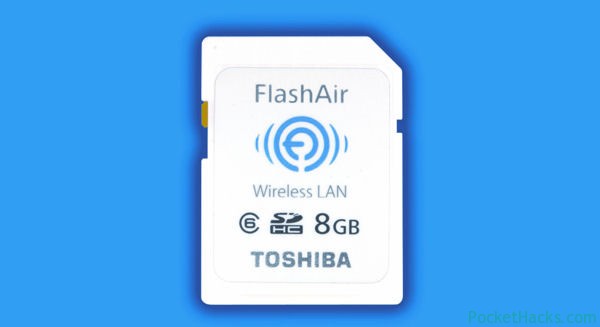
Toshiba Flash Air

Toshiba FlashAir – WiFi SD Card

Toshiba Flash Air Surely your first association for SD card with Wi-Fi capabilities is Eye-Fi, but Toshiba decided to develop the idea of ​​transmitting information over a wireless connection by…

0 Comments

Working USB host for HTC HD2 with WM6.5

htc-hd2-usb-host

Here comes another great project from DFT and Cotulla – working USB host for HTC HD2!

This app contains drivers designed to allow you to connect different USB devices to HTC LEO (HTC HD2). Those drivers are designed for Windows Mobile 6.5 and they were successfully tested on 3.14 ROM (test it on your ROM).

Installation:

  1. Install CotullaCert.cab
  2. Install DFT_LEO_USBH_WM65.CAB
  3. Reset your device

How-to use it:

  1. Start USBH Switch from the Programs menu
  2. Press “Switch to Host” button
  3. Connect a host device
  4. After some time it should be detected
  5. You can try to use it now
  6. After usage you need to reset your phone to go back to the USB client mode

For using the USB host ability you will need a special cable or self-powered USB hub. More information can be found here

(more…)

0 Comments